Batch OCR
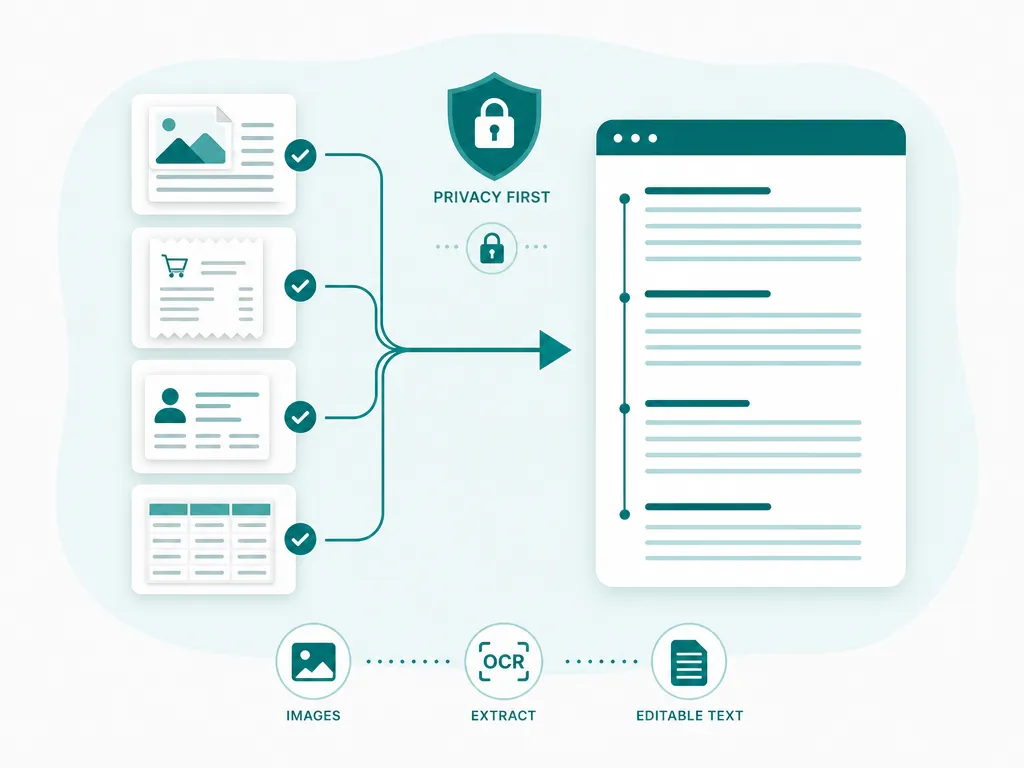
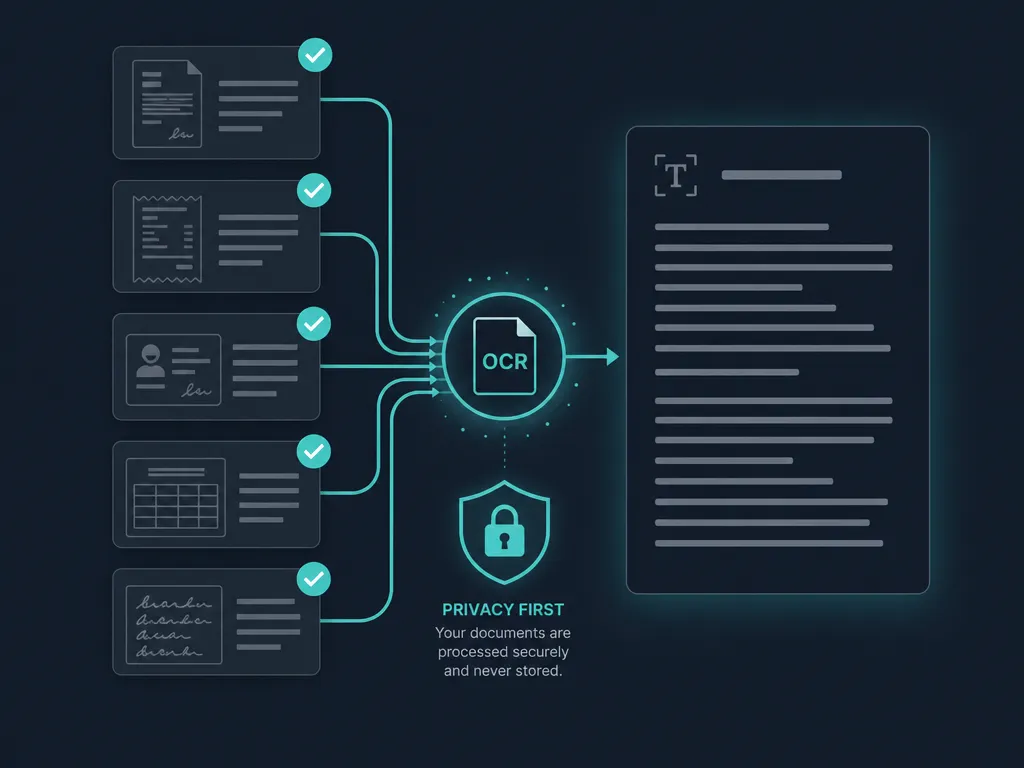
Drop a whole folder of images and extract the text from all of them in a single pass — each result appears as soon as its image is done, with one combined download at the end.
Add multiple images
Drop several images, or choose files below
JPG, PNG, WEBP, HEIC — select as many as you like
When you have more than a handful of images, doing them one at a time is a chore. Batch OCR takes the whole pile at once — screenshots, scanned receipts, photographed pages, exported chat images — and turns each into text, streaming the results as it goes so you are never staring at a frozen “processing” screen.
The batch is fault-tolerant by design. A corrupt file or an image with no readable text is flagged and skipped without derailing everything else, so a 40-image job does not fail because of one bad file. When it finishes, a single combined export stitches all the text together with filenames as headers, ready to paste into a spreadsheet or archive.
Files run through the same on-device PP-OCRv6 engine as every other SafeOCR tool, one at a time rather than in parallel. That is a deliberate trade: a single WebAssembly worker moving through the queue keeps peak memory roughly constant whether the batch holds 5 images or 200, so a phone can work through a folder of forty photos without the tab running out of memory. The cost is that total time scales with the pile — recognizing a hundred receipts takes about ten times as long as recognizing ten of them, not the same time split across ten workers.
A typical batch might be a semester of expense-report receipts, a stack of scanned intake forms, or a folder of screenshots pulled from a chat thread. Because the combined export labels every section with its source filename, you can paste fifty results into a spreadsheet and still trace each line back to the photo it came from. A blurry receipt or a file that will not decode gets flagged in its own row instead of stopping the run, so you know exactly which one or two files to reshoot once everything else is already done.
Every file in the batch stays exactly where you found it — nothing is queued on a remote server, and there is no daily cap on how many you run through. Working from a single picture instead? Image to Text covers that; a multi-page document is a better fit for PDF to Text, which streams results page by page; and if one page needs to become an editable Word file rather than a plain-text export, Image to Word handles that instead.
How to run OCR on multiple images
Select all your images
Drag a whole batch onto the box or pick multiple files at once. JPG, PNG, WEBP, and HEIC can be mixed freely in the same batch.Let them stream through
Files are processed one at a time on your device. Each row updates live — queued, recognizing, done, or failed — and a failed file never stops the rest.Export everything together
Expand any file to check its text, then copy all results or download a single .txt with every file clearly labeled and separated.
Batch OCR — FAQ
How many images can I process at once?
There is no fixed cap. Files are handled one at a time to keep memory usage predictable, so large batches work; they simply take longer in proportion to the number of images.
What happens if one image fails?
Only that file is marked as failed — the batch keeps going. You still get results for every image that succeeded, and can retry the failed ones separately.
Can I mix different image formats in one batch?
Yes. JPG, PNG, WEBP, and iPhone HEIC files can all go into the same batch; HEIC images are converted automatically before recognition.
How do I get all the text out?
Use Copy all to put every result on your clipboard, or Download to save one .txt file. Each image's text is preceded by its filename so you can tell the sections apart.
Are the images uploaded for processing?
No. Every image in the batch is decoded and recognized locally in your browser. Nothing is uploaded, which makes bulk processing of private documents safe.
Read: Tips for cleaner results across a whole batch
Runs entirely in your browser — your files never leave your device.
How we built thisLast updated July 4, 2026