Extract Text from PDF
Turn scanned or image-based PDFs into selectable text. Each page is rendered and read on your device, with progress you can watch and stop at any time.
Drop a PDF to extract text
or choose a file below
Multi-page PDFs supported — rendered and read page by page
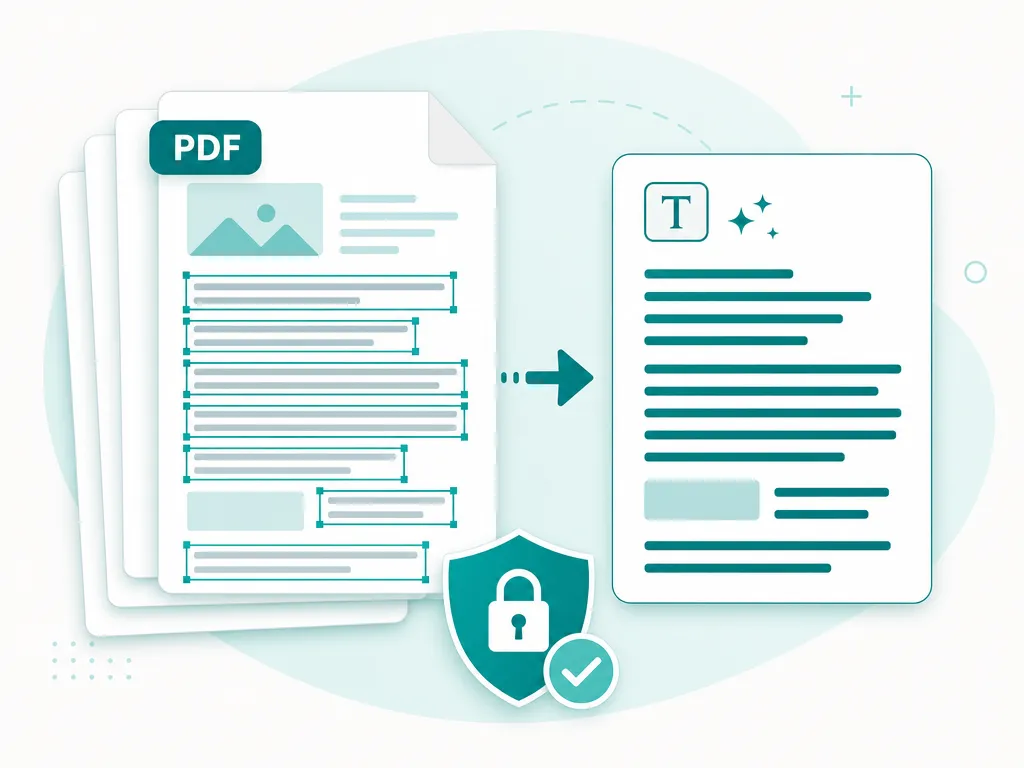
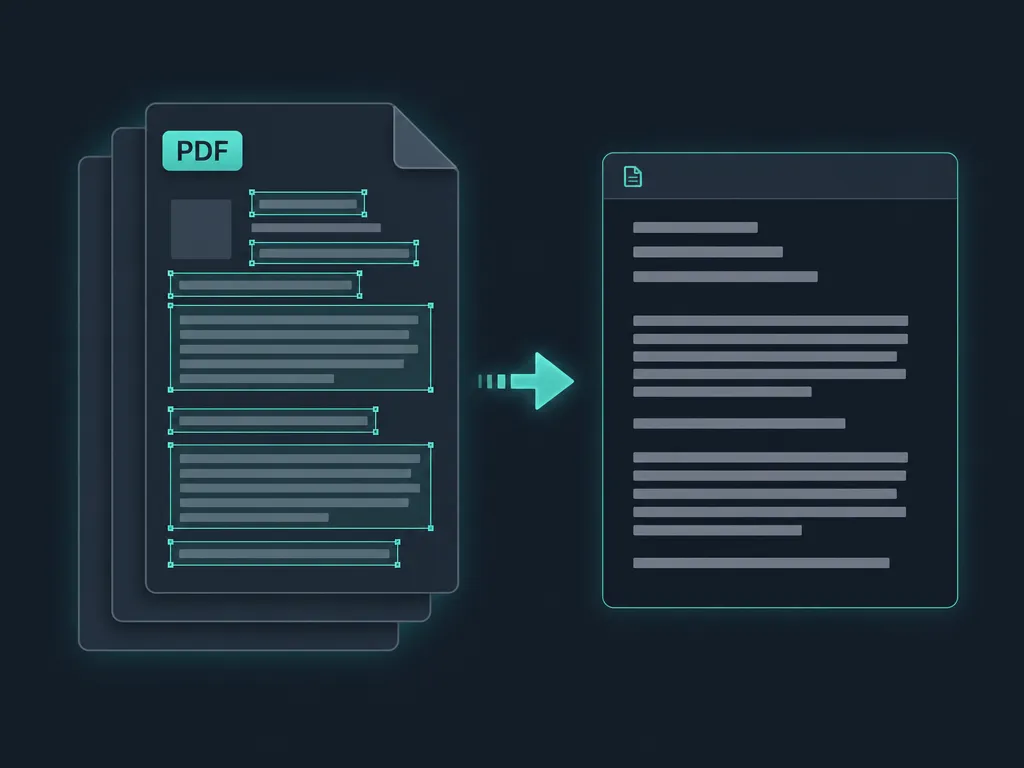
A scanned PDF is really just a stack of pictures. Your PDF reader can show it, but you cannot select, search, or copy the words inside. SafeOCR fixes that: it renders each page, reads the text with on-device OCR, and gives you back plain text you can actually use — without uploading the document anywhere.
Because everything runs locally, it is a safe choice for the kinds of PDFs you would never want to hand to a random web service: signed contracts, bank and medical statements, tax paperwork, or internal reports. The document never leaves your machine, and nothing is stored after you close the tab.
A long scan is rarely uniform. Page 1 of an 80-page bundle might be a crisp first pass through the feeder, while page 40 came out darker or slightly skewed because the stack shifted halfway through. Since each page is recognized on its own, a rough patch in the middle does not drag down the pages scanned cleanly — once processing finishes you can see exactly which page numbers came out faint or crooked and are worth a second look or a re-scan.
Handling pages one at a time also makes the Cancel button meaningful rather than all-or-nothing. Stop a 200-page document after page 30 and those 30 results stay in the list, ready to copy or download — there is no reason to sit through the rest of a long scan just to confirm the opening pages read cleanly. Recognition runs on the same PP-OCRv6 model as SafeOCR’s other tools, through ONNX Runtime Web with WebGPU acceleration when the browser supports it.
Pages stream in as they finish, so you see results immediately instead of waiting for the whole file. If you only have a single image rather than a PDF, use Image to Text; for a folder of separate image files, Batch OCR handles them in one run. And if you are capturing pages live with a camera instead of importing files that already exist, Scan to Text is built for exactly that.
How to extract text from a PDF
Drop in your PDF
Drag a PDF onto the box above or browse for one. Multi-page documents are fine — even long scans.Watch it process page by page
Each page is rendered and recognized one at a time so memory stays low. A progress bar shows how far along it is, and a Cancel button stops it whenever you want.Copy or download the result
Expand any page to check its text, then copy everything or download a single .txt with each page clearly separated.
PDF to text — FAQ
Does this work on scanned (image-only) PDFs?
Yes — that is exactly what it is for. Each page is rendered to an image and run through OCR, so PDFs that contain no selectable text (scans, faxes, exported photos) become readable text.
Is there a page limit?
No hard limit. Pages are processed one at a time to keep memory usage low, so even long documents work; they just take proportionally longer.
Can I stop a long document partway through?
Yes. Click Cancel and processing stops immediately. Pages that already finished keep their text so you can still copy or download what was extracted.
Are my PDFs uploaded anywhere?
No. Rendering and recognition both happen in your browser. The PDF is never sent to a server, which makes this safe for contracts, statements, and other sensitive documents.
Why doesn't it keep the original layout?
The tool extracts the text content in reading order, not the visual layout. Columns, tables, and positioning are not reconstructed — you get clean text you can paste and reformat as needed.
Read: The complete guide to scanned PDFs
Runs entirely in your browser — your files never leave your device.
How we built thisLast updated July 4, 2026