Screenshot to Text
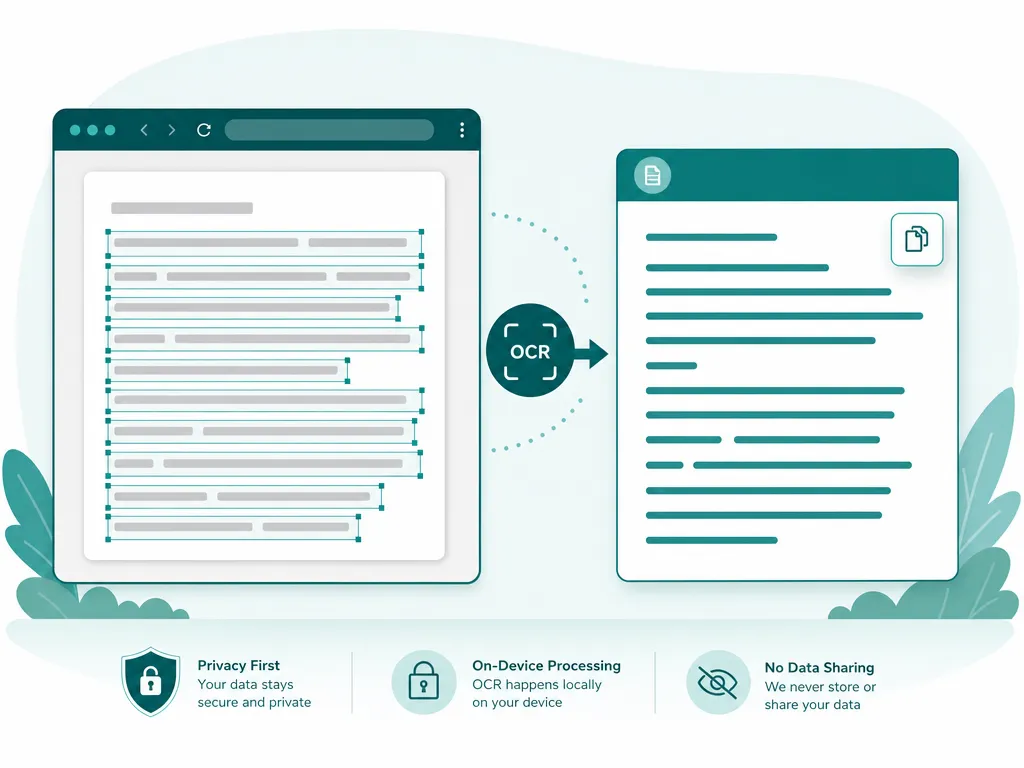
Grab a screenshot, paste it here with Ctrl/Cmd+V, and get the words back as real, selectable text — no saving a file first, and nothing ever leaves your browser.
Tip: copy a screenshot, then press Ctrl/Cmd + V anywhere on this page to read it instantly.
Drop an image to scan
or choose an option below
JPG, PNG, WEBP, HEIC
Or press Ctrl/Cmd+V to paste
A screenshot is the fastest way to capture something on screen — and the slowest thing to reuse, because the words inside it aren’t text yet. This tool closes that gap. Snap a screenshot, paste it with Ctrl/Cmd+V, and the characters come back as text you can select, edit, and paste anywhere. There’s no “save as PNG, then upload” detour; the clipboard is the input.
Think about what usually lands in a screenshot. A cryptic error message you want to search or send to a colleague without retyping it. A stretch of a chat conversation you need to quote. A code snippetfrom a video or a slide that you’d rather run than transcribe. A receipt or an order confirmation whose total and reference number belong in a spreadsheet. A paragraph from a paywalled or selection-blocked articleyou want to cite. In each case the information is right there on the display, but it’s locked inside pixels until something reads it back out as text.
Because everything happens on your own machine, the screenshot never travels anywhere. That matters more than it sounds like: screen captures routinely include things you’d never intentionally hand to a random website — a customer’s details in a support ticket, an internal dashboard, a two-factor code, a draft you haven’t published. Here the recognition model loads once into your browser and then does its work locally, so those captures stay between you and your device. After that first engine download, the tool even keeps working offline.
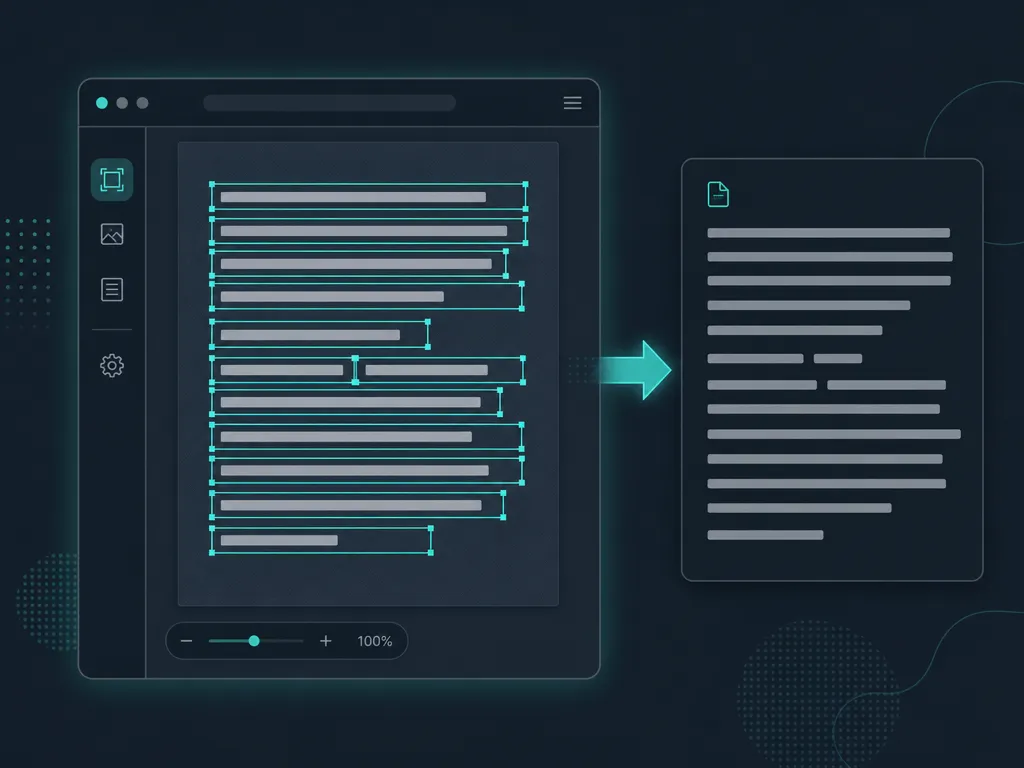
The output is built to be useful, not just dumped. Lines are grouped in natural reading order, so a multi-line error or a stacked list comes out structured instead of scrambled. Every detected block is individually clickable, which makes it trivial to lift just one value — a single order ID, a URL, one line of a stack trace — out of a busy screen. When you want the whole thing, copy it in one click or export a .txt or .docx. It’s free and unlimited, reads 50+ languages, and runs on the PP-OCRv6 engine, so pasting one screenshot or a hundred costs nothing and asks for no account.
Not everything worth capturing is already on your screen, though. For a printed page, a receipt, or a sign in front of you, Scan to Text swaps the clipboard for your camera and reads it with the same on-device engine. And when you only need one value out of a busy capture rather than the whole thing, Copy Text from Image turns each detected line into its own clickable target.
How to convert a screenshot to text
Paste the screenshot
Take your screenshot, then press Ctrl/Cmd+V anywhere on this page. Prefer a file? Drag the image in or click to browse instead — JPG, PNG, WEBP, and HEIC all work.Let it read on-device
The engine detects each line and recognizes it right in your browser, keeping the top-to-bottom reading order of the original capture.Copy or export the text
Copy everything at once, click a single box to lift one line, or download the result as a .txt or .docx to reuse elsewhere.
Screenshot to text — FAQ
Paste isn't doing anything — what's wrong?
Make sure an actual image is on your clipboard, not a file path or a link. Use your system's screenshot shortcut (Shift+Cmd+4 on macOS, or the Snipping Tool / PrtScn on Windows) so the capture is copied as image data, then click once on this page and press Ctrl/Cmd+V.
Which keyboard shortcut pastes a screenshot?
Cmd+V on macOS and Ctrl+V on Windows and Linux. There's no dedicated button to press first — just paste and recognition begins on whatever image is in your clipboard.
What if I already saved the screenshot as a file?
That's fine. Drag the saved image onto the page or use the file picker. Pasting is simply the fastest path when the screenshot is still fresh on your clipboard.
Which image formats can I paste or drop?
JPG, PNG, WEBP, and HEIC are all supported. Most operating systems copy screenshots as PNG, which reads cleanly.
Is my screenshot uploaded anywhere?
No. The image is decoded and recognized entirely in your browser using WebAssembly and WebGPU. Nothing about the screenshot — pixels or extracted text — is sent to a server or logged.
How accurate is it on app and interface text?
Very accurate on crisp, high-DPI screenshots, which are exactly what most captures are. Sharp UI labels, menu items, and dialog text read reliably; tiny or heavily compressed thumbnails are the main thing that lowers accuracy.
Read: How to extract text from a screenshot (Mac & Windows)
Runs entirely in your browser — your files never leave your device.
How we built thisLast updated July 4, 2026