HEIC to Text
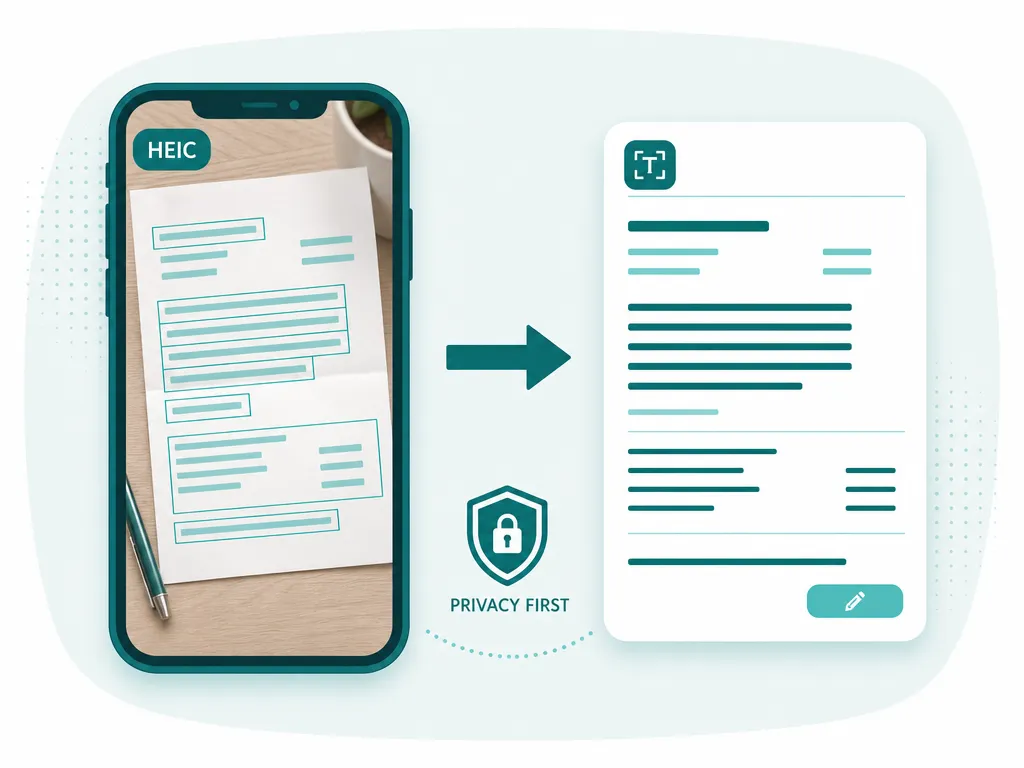
Drop a .heic straight off your iPhone and read its text — SafeOCR converts the Apple photo format for you, right in the browser, before it ever runs OCR.
Drop an image to scan
or choose an option below
JPG, PNG, WEBP, HEIC
Or press Ctrl/Cmd+V to paste
If you have ever tried to pull text out of an iPhone photo and been told “this file type isn’t supported,” you have met HEIC. Since iOS 11, iPhones and iPads save photos as .heic files by default — Apple’s take on the HEIF format. It is a genuinely good format: your photos look the same but take up roughly half the space of a JPEG. The catch is that plenty of tools, uploaders, and older OCR sites still choke on it, so the moment you want to read a photo you shot on your phone, you hit a wall.
The usual fix is annoying busywork: open Photos, export or duplicate the image as a JPG, dig the copy out of Files, and only then feed it to whatever tool you actually wanted to use. SafeOCR skips all of that. Drop a raw .heicstraight off your phone and it converts the photo for you — quietly, in the browser, using a lightweight converter that only loads when a HEIC actually shows up — and then reads the text. There is no separate “convert to JPG” step to remember, no second app in the loop.
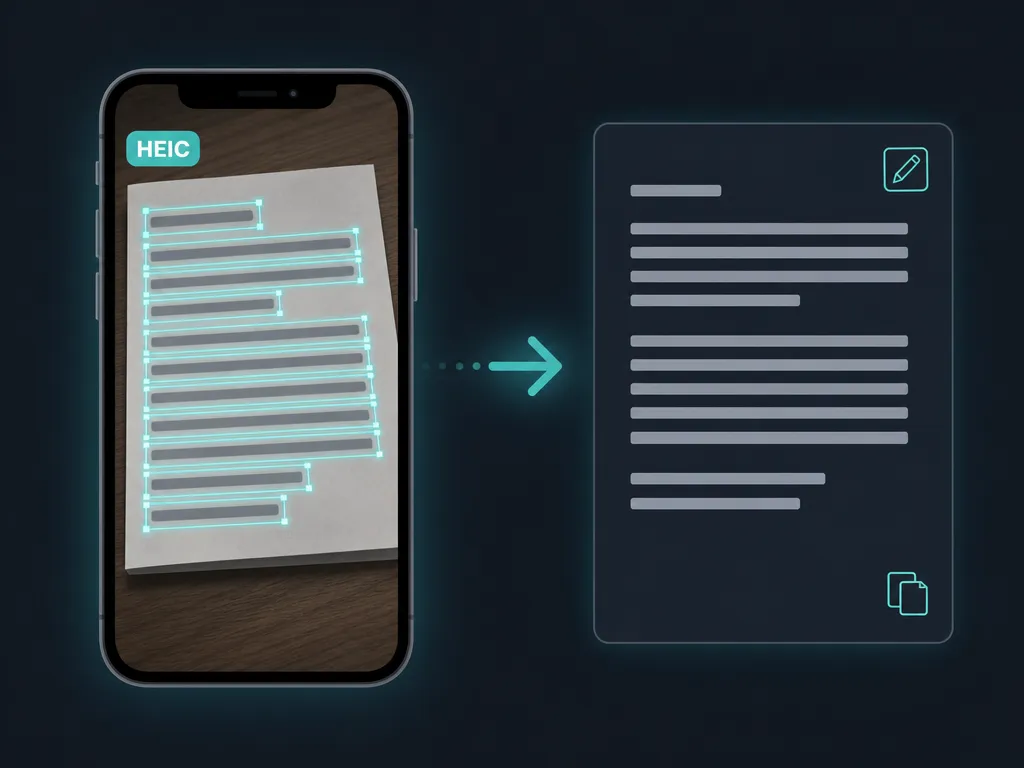
That means the real-world iPhone captures just work. A photo of a receipt you need the total from, a whiteboard after a meeting, a page of a book, a business card, a shipping label, a serial number on the back of a device — shoot it, drop the HEIC in, and get selectable text back. Recognition keeps the reading order intact, so multi-line notes come out structured instead of scrambled, and you can click any single block to lift just one line or number.
Because your iPhone photos are often personal — receipts with your card, documents with names on them, a whiteboard full of things you would rather not post to a stranger’s server — it matters that none of this leaves your machine. Both the HEIC conversion and the text recognition happen entirely inside your own browser with WebAssembly and WebGPU. Your photo is never uploaded, the extracted text is never logged, and after the engine downloads once it keeps working with no connection at all. It reads 50+ languages, it is free and unlimited, and it runs on the same PP-OCRv6 engine as every other SafeOCR tool.
Already exported the photo as a regular JPG instead of HEIC? Photo to Text reads that the same way; and if it is a whole camera roll of iPhone shots rather than one, Batch OCR runs the entire set through in a single pass.
How to turn a HEIC photo into text
Bring in the HEIC from your iPhone
Drop the .heic file in, browse to it, or share it straight from the Photos app — the receipt, whiteboard, or document you just shot on your phone.It converts and reads on-device
SafeOCR quietly converts the HEIC to a readable image in your browser, then runs recognition on it. Both steps stay on your machine.Copy or export the text
Grab the whole result, click a single box to lift one line, or download a .txt or .docx — no round trip through a JPG converter first.
HEIC to text — FAQ
Do I have to convert my HEIC to JPG first?
No. That is the whole point of this page. Drop the .heic in as-is and SafeOCR converts it for you in the browser before reading it — you skip the usual export-to-JPG detour entirely.
What is HEIC, and why do my iPhone photos use it?
HEIC is Apple's container for the HEIF image format, the default on iPhone and iPad since iOS 11. It stores the same photo in a much smaller file than JPEG, which is why your Camera Roll fills up slower — but also why so many older apps refuse to open it.
Does converting my HEIC upload the photo anywhere?
No. The conversion runs locally through an in-browser converter that loads on demand, and the OCR runs locally too. Your photo and the text it contains never leave your device and are never sent to a server.
What is the difference between HEIC and HEIF?
HEIF is the underlying image format; HEIC is the file type Apple uses to wrap HEIF images (the .heic extension). In practice people say HEIC to mean iPhone photos. SafeOCR handles both .heic and .heif files the same way.
Can it read a photo of a receipt or whiteboard I shot on my phone?
Yes. A quick iPhone snap of a receipt, a whiteboard, a page of notes, or a business card comes through fine — HEIC is converted, the text is detected in its natural reading order, and you copy out exactly what you need.
Is there a catch — a limit or an account?
No. It is free and unlimited with no sign-up. After the one-time engine download the whole thing works offline, and because every step happens on your device, you can run as many HEIC photos through it as you like.
Read: How to turn an iPhone photo into text
Runs entirely in your browser — your files never leave your device.
How we built thisLast updated July 4, 2026