Photo to Text
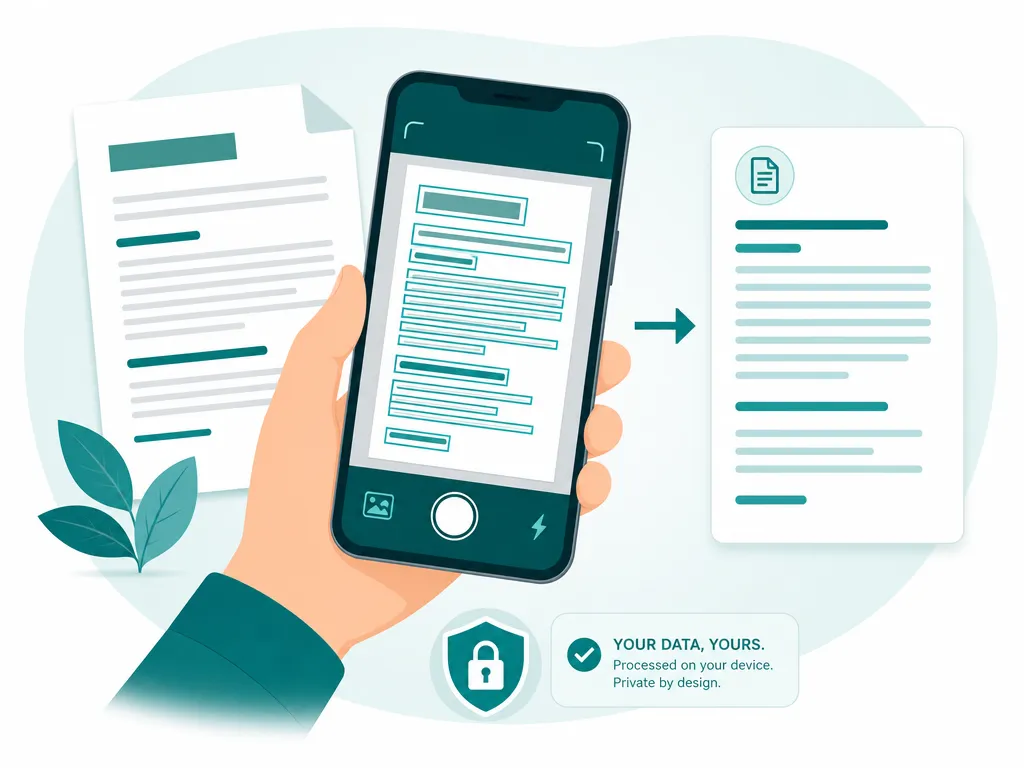
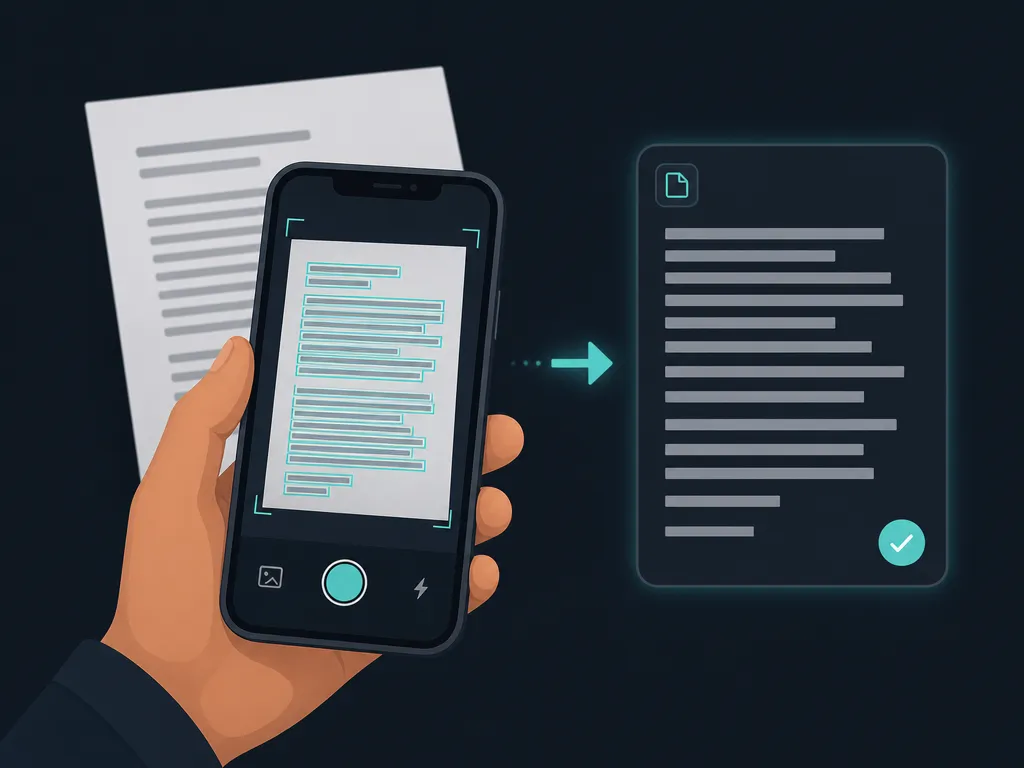
Snap a picture of a book page, whiteboard, receipt, or product label with your phone and turn it into text you can edit — read straight on your device, never uploaded.
Drop an image to scan
or choose an option below
JPG, PNG, WEBP, HEIC
Or press Ctrl/Cmd+V to paste
A “photo to text” conversion starts with something you can see but not select: a paragraph in a paper book, a diagram someone scribbled on a whiteboard, the fine print on a product label, a business card handed to you at an event, or a street sign in a language you are trying to look up. You point your phone at it, and instead of retyping every word by hand you let the recognizer turn the picture into text you can paste, search, translate, or share.
The whole point of a photo to text converter is speed at the moment of capture. Camera capture and file import both work, so you can shoot the page right now or pull an older photo out of your gallery. Once the image is in, the tool finds the printed lines, keeps them in reading order, and gives you plain, editable text — no manual transcription, no squinting back and forth between the paper and your keyboard.
Because a photo is messier than a clean scan, a few habits make the difference between a perfect result and a garbled one. Good light matters most: shoot in even lighting and avoid casting your own shadow across the page. Hold the phone straight on rather than tilted, get close enough that the text fills the frame, and pause for the camera to focus before you tap. Sharp, well-lit, square-on photos convert almost word for word; dim or crooked ones force the recognizer to guess.
Privacy is built into how the conversion happens, not bolted on afterward. Everything runs on the device in your hand — the model executes in your own browser, and your photo is processed in memory and then discarded. Nothing is uploaded, nothing is logged on a server, and no account stands between you and the text. That means you can photograph a receipt with your address on it, a medical form, or an internal slide without wondering where the image ended up. It also means the tool keeps working on a plane or in a basement with no signal, once the engine has downloaded once.
This is the same on-device engine behind every SafeOCR tool, powered by the PP-OCRv6 recognition model. If your source is a multi-page document rather than a single snapshot, reach for the PDF to Text tool; if you have a whole camera roll to get through, Batch OCR runs them in one pass. For a one-off photo, though, this page is the quickest path from picture to editable text.
How to convert a photo to text
Take or choose a photo
Open the camera to capture the page in front of you, or import a shot from your phone's gallery. JPG, PNG, WEBP, and iPhone HEIC all work.Read it on your device
The recognizer scans the photo locally, finds each line of text, and keeps it in the order it appears — no round trip to a server.Copy or export the text
Copy everything at once, tap a single block to lift just one line, or download a .txt or .docx to keep working on a computer.
Photo to text — FAQ
My photo came out a little blurry. Will it still work?
It depends on how blurry. Recognition needs the individual letters to be distinguishable, so a slightly soft photo is usually fine while a heavily motion-blurred one will drop words. If the result looks wrong, retake the shot holding the phone steady, tapping to focus, and getting closer so the text fills more of the frame.
I photographed the page at an angle — is that a problem?
Mild perspective is tolerated, but a steep angle stretches the letters and hurts accuracy. For the cleanest conversion, hold the camera straight over the page so the text sits flat and square, and make sure the whole passage you want is inside the frame.
Can it read my handwriting?
The engine is tuned for printed text — books, signs, labels, slides, typed notes — and that is where it shines. Neat, clearly separated handwriting sometimes comes through, but cursive or hurried writing is unreliable. Treat handwriting as best-effort, not a guarantee.
What languages can it recognize in a photo?
Over 50, including English and other Latin-script languages plus Chinese, Japanese, Korean, and more. You can photograph a menu, sign, or page in most common languages and get usable text back.
Do my photos get uploaded anywhere?
No. Every photo is decoded and read inside your browser using WebAssembly and WebGPU. Neither the picture nor the extracted text leaves your device, so even a photo of a private note, ID, or contract stays with you. After the one-time engine download it even works offline.
Is there a catch — cost, sign-up, or limits?
None. It is free, needs no account, and has no per-day cap. Because your own phone or laptop does the work, you can convert as many photos to text as you like.
Read: Getting clean text out of a phone photo
Runs entirely in your browser — your files never leave your device.
How we built thisLast updated July 4, 2026