PNG to Text
Convert PNG images into selectable, editable text without leaving your browser — ideal for the screenshots your operating system already saves as PNG.
Drop an image to scan
or choose an option below
JPG, PNG, WEBP, HEIC
Or press Ctrl/Cmd+V to paste
On nearly every operating system, the screenshot key produces a PNG. Snip a window, grab a region, capture a full page — macOS, Windows, and most Linux desktops all drop the result onto disk or the clipboard as a .png. That makes “PNG to text” the natural job whenever you want the words out of something you just captured on screen rather than photographed with a camera.
PNG has a property that works strongly in OCR’s favor: it is lossless. Nothing about the picture is approximated or thrown away to shrink the file, so every character keeps a hard, clean edge instead of the soft halo you get from lossy compression. Screen content in particular — anti-aliased UI type, monospaced code, thin lines in a chart or diagram — survives a PNG capture with its exact pixel shapes intact. Feeding those sharp shapes to a recognition model is close to the ideal case, so a PNG screenshot generally converts to text more reliably than the same content re-saved in a compressed format.
PNG also carries an alpha channel, which is why so many exported logos, icons, and design assets ship as transparent PNGs. This tool decodes that transparency and flattens it before reading, so a label floating on a see-through background comes through just as cleanly as text on a solid one. And because PNG is a first-class input, there is no intermediate conversion — the file is decoded natively and handed straight to the engine.
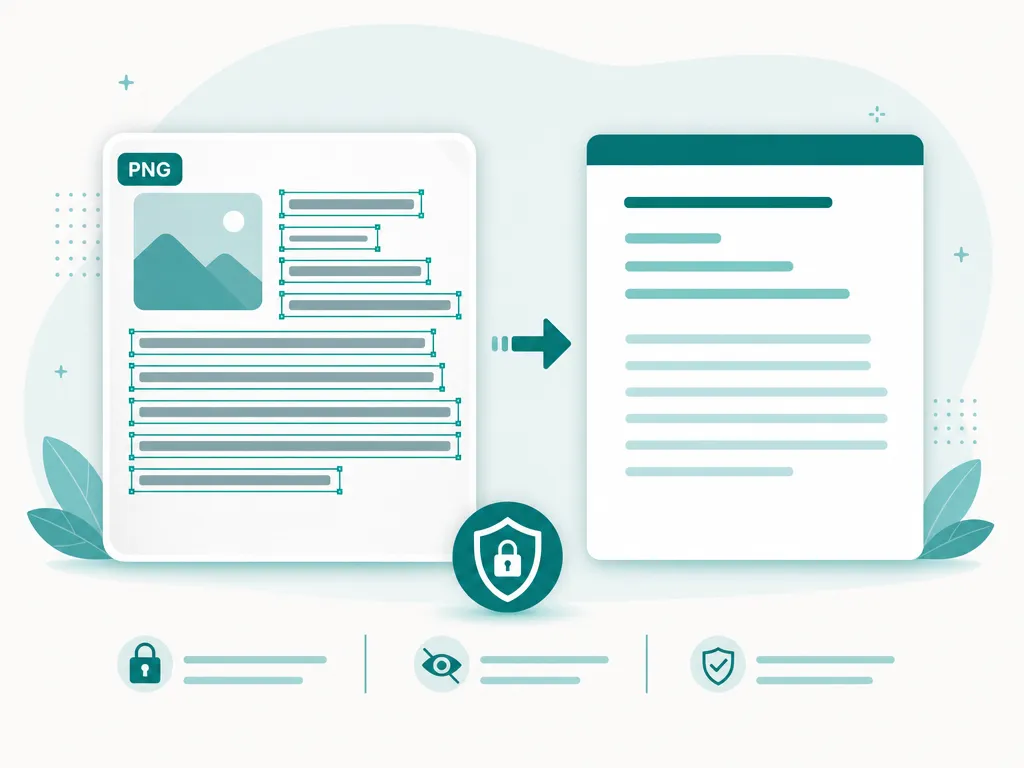
All of it runs in your browser through WebAssembly and WebGPU. Your PNG is opened, flattened, and recognized in the page’s own memory, and nothing is uploaded— no image, no extracted text, no logging on a server. After the one-time engine download the tool even works offline. That on-device model is what lets you pull text from a screenshot of an internal ticket, a private message, or an unreleased design without that capture ever touching someone else’s infrastructure. There are no quotas and no account: convert as many PNGs as you like, free.
If your capture happens to be a JPG photo instead, the same engine reads it just as well through JPG to Text; save it as a WEBP and WEBP to Text handles that directly, too — PNG simply tends to be the format your screenshot already lives in.
How to convert a PNG to text
Add your PNG
Drop in a .png file, browse to it, or paste a freshly captured screenshot straight from the clipboard. PNG is decoded natively — no format conversion step.Recognize on your device
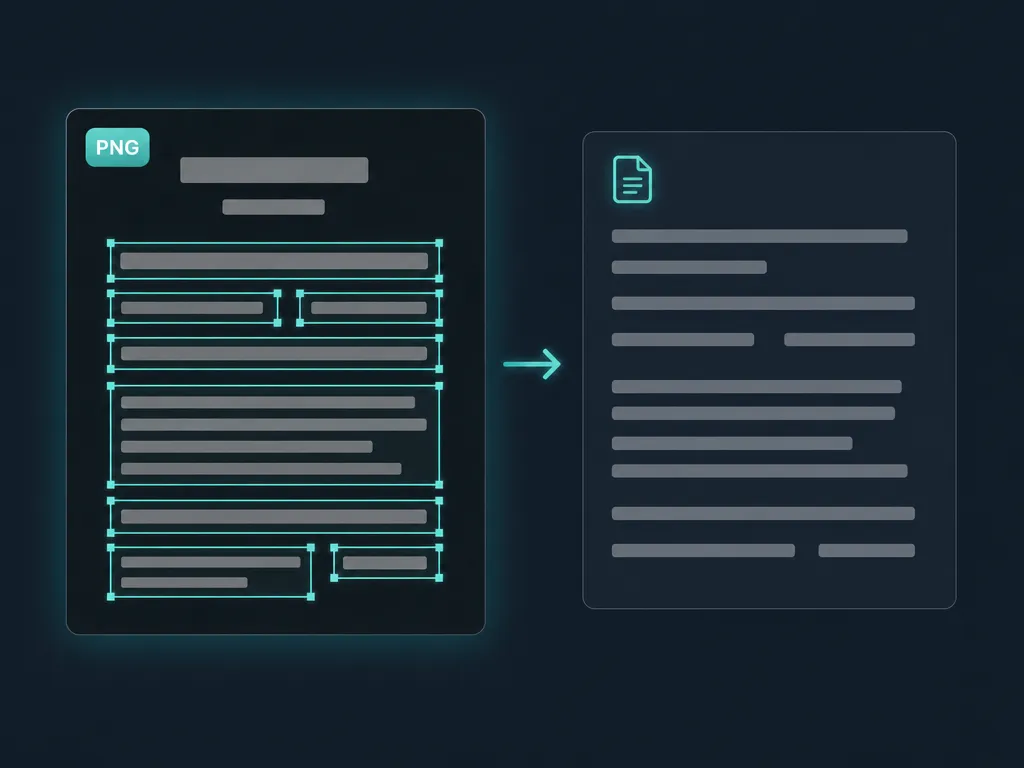
The engine detects every line and reads it locally, using the crisp, lossless pixels of the PNG to lock onto exact character shapes.Copy or export the text
Copy everything, click a single box to grab one line, or download a .txt or .docx of the recognized text.
PNG to text — FAQ
Why do PNG screenshots read so accurately?
PNG is a lossless format, so a screenshot is stored pixel-for-pixel with no compression blur around letters. Sharp, unsmeared character edges are exactly what an OCR model wants, which is why UI text, code, and diagrams captured as PNG tend to recognize cleanly.
How are transparent PNG backgrounds handled?
PNG supports an alpha channel, so many exported graphics have a transparent background. The image is decoded and flattened before recognition, so text sitting on a transparent or checkerboard area is read the same as text on a solid fill.
Do large, high-resolution PNGs cause a problem?
No. PNG files can be large because they never throw away detail, but that detail helps rather than hurts recognition. Everything is processed in memory on your own device, so a heavy PNG only uses your local resources — there is no upload to wait on.
Is my PNG uploaded anywhere?
No. Your PNG is decoded and read entirely inside the browser tab. Neither the image nor the text it contains ever leaves your machine, which matters when the screenshot shows a dashboard, chat, or document you would rather not send to a server.
Which languages can it read from a PNG?
More than 50, powered by the PP-OCRv6 model. The same on-device engine reads a PNG the same way regardless of whether it holds English UI labels, a code snippet, or another script entirely.
Read: 7 tips for more accurate OCR results
Runs entirely in your browser — your files never leave your device.
How we built thisLast updated July 4, 2026