Extract Text from Image
Pull the text out of screenshots, scans, and photos and turn it into data you can work with — all processed locally in your browser.
Drop an image to scan
or choose an option below
JPG, PNG, WEBP, HEIC
Or press Ctrl/Cmd+V to paste
“Extract text from image” usually means one thing: you have content trapped in a picture and you need it as real, selectable text. Maybe it is a code snippet in a screenshot, a table in a scanned report, an address on a photographed label, or a serial number on a box. SafeOCR reads the image and hands you the text so you can paste it into an editor, a terminal, a spreadsheet, or a form.
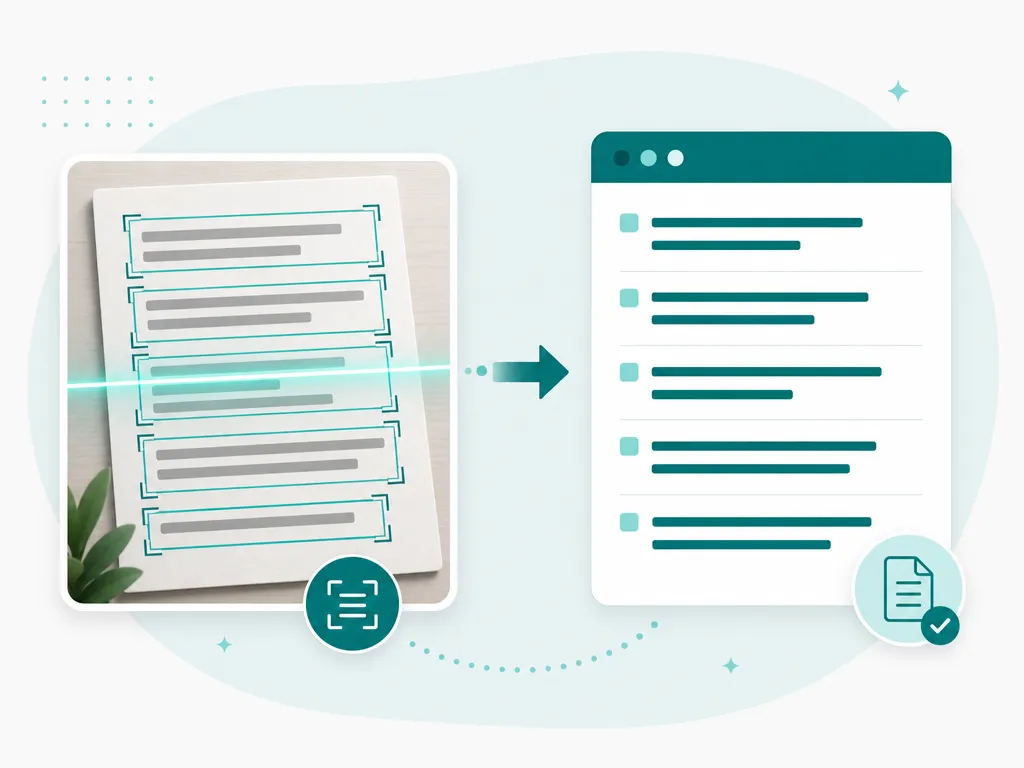
The workflow is built for people who then do something with the text. Recognition preserves reading order, so multi-line content comes out structured rather than shuffled. Each detected block is individually selectable, which makes it quick to lift a single value out of a busy image. And because the model runs on your machine, extracting text from sensitive material — invoices, contracts, internal dashboards — never involves handing that material to a third-party server.
Field extraction is the most common reason people land here: a shipping label with an address block, an invoice with a line-item total, an intake form with a name and ID number a few lines apart. Because every detected line is its own clickable box rather than one glued-together blob, you click just the total, copy it, and drop that single value into a spreadsheet cell — no re-typing, no accidentally dragging in the line above or below it. Do that across a dozen similar documents and you have built a small dataset by hand, one field at a time, without writing a scraper or a parser for a format you do not control.
Recognition runs on the PP-OCRv6 model through ONNX Runtime Web, using WebGPU where the browser exposes it and falling back to WebAssembly otherwise — the same engine no matter which image you feed it, so the accuracy of a pulled field does not depend on which SafeOCR page you happened to open.
If your source is a full document rather than a single image, the PDF to Text tool streams results page by page; if you have many images at once, Batch OCR processes them in one pass; and if you would rather have the result as an editable Word document than plain text, Image to Word exports straight to a .docx.
How to extract text from an image
Load the image
Drag in a file, browse, paste, or capture with a camera. The engine reads JPG, PNG, WEBP, and HEIC.Run on-device recognition
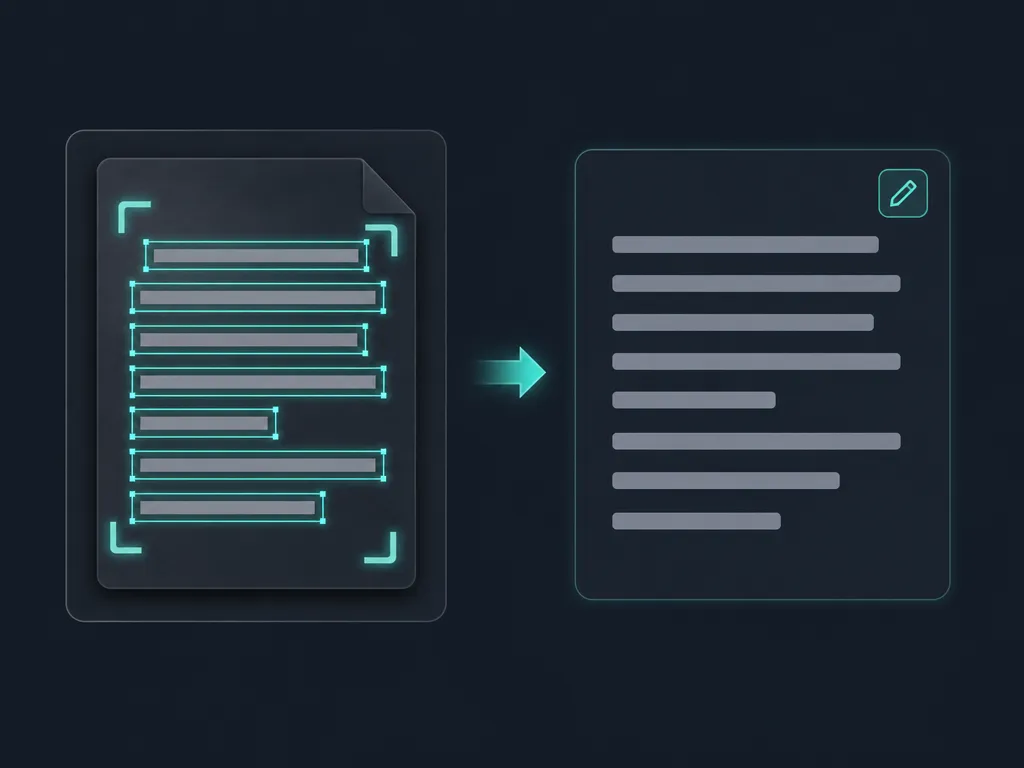
Text is detected and read locally with bounding boxes, preserving the natural reading order of the source.Grab exactly what you need
Copy the whole result, click individual boxes to pull single fields, or export a .txt or .docx for downstream processing.
Extracting text from images — FAQ
Does it preserve the reading order of the text?
Yes. Detected lines are grouped and ordered top-to-bottom, left-to-right, so the extracted text reads the way the original does rather than as a jumble of fragments.
Can I extract just one field instead of everything?
Yes. Every detected block is shown as a clickable box on the image — click a box to select only that line, then copy the selection. Handy for pulling a single code, total, or ID.
Is there a limit on how many images I can process?
No. There are no daily quotas or account requirements. Since processing happens on your own device, you can extract text from as many images as you like.
What output formats can I export?
You can copy plain text to the clipboard, download a .txt file, or download a .docx. The .docx contains plain text in reading order; original layout is not reproduced.
Will my images or extracted text be stored anywhere?
No. Images are decoded and recognized in memory in your browser and nothing — neither the image nor the resulting text — is uploaded or logged on a server.
Read: How browser-based OCR actually works
Runs entirely in your browser — your files never leave your device.
How we built thisLast updated July 4, 2026