Scan to Text
Point your camera at a page, receipt, or sign and scan it straight into editable text — a document scanner that runs entirely inside your browser.
Tip: use the camera option below to scan a page or sign directly — no app to install.
Drop an image to scan
or choose an option below
JPG, PNG, WEBP, HEIC
Or press Ctrl/Cmd+V to paste
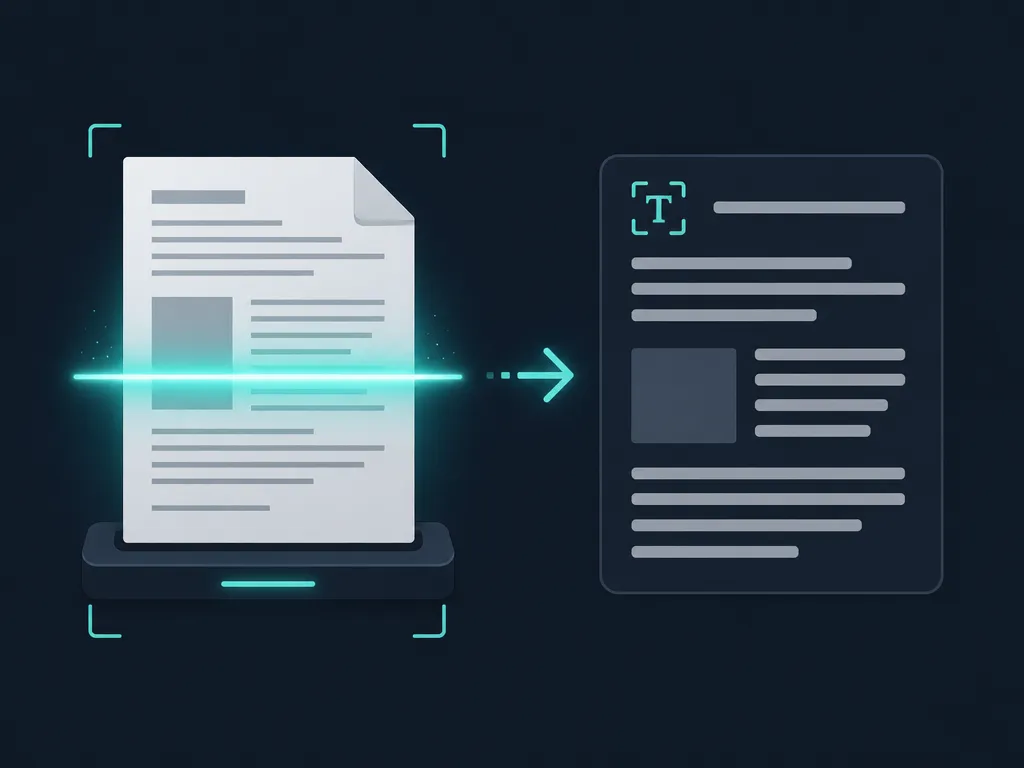
“Scan to text” used to mean a bulky flatbed and a driver disc. Here it means holding up your phone or webcam, capturing whatever is in front of you, and getting back words you can actually edit. The camera is a first-class input: frame a printed page, a paper receipt, a posted notice, or a product label, and SafeOCR turns that live view into a block of selectable text in a moment.
It works like a lightweight document scanner that happens to live in a browser tab. There is no companion app to sideload and no account to create — you open the page, point the camera, and capture. Because the whole pipeline is built for quick, real-world grabs, it suits the situations where you would normally retype something by hand: a Wi-Fi password taped to a router, a serial number on the back of a device, an address on an envelope, or the total on a crumpled receipt you need for an expense report.
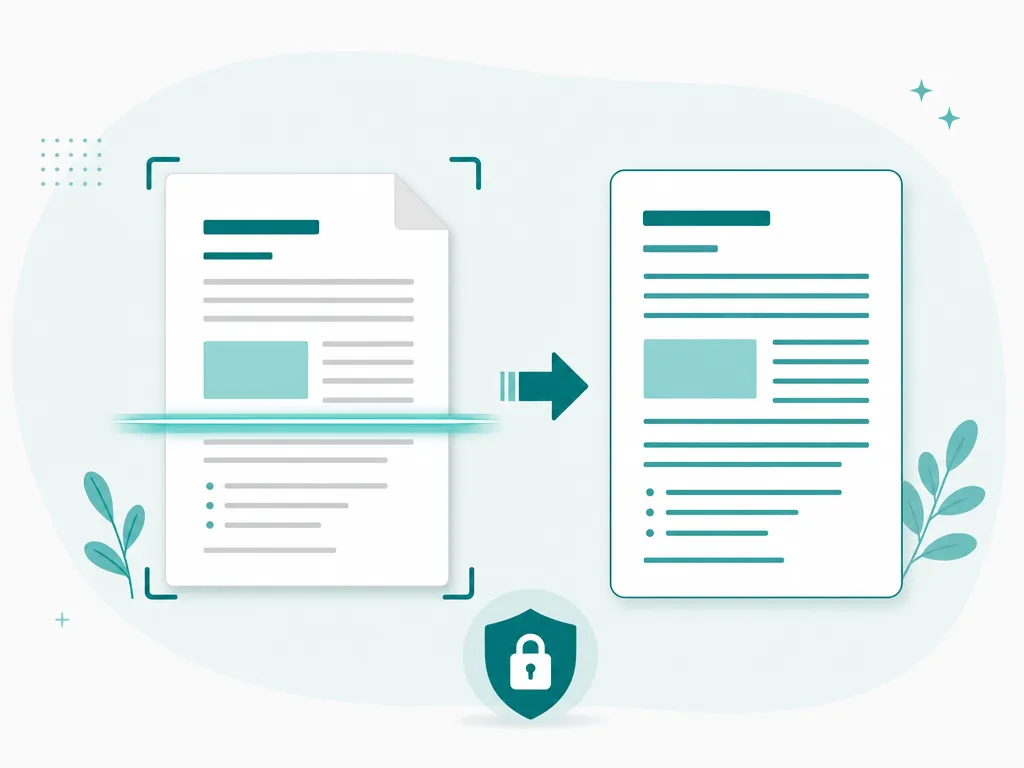
The part that sets it apart from the typical scanner app is where the work happens. Most of those apps quietly ship your capture to a cloud service to do the reading, which means your receipts and documents pass through someone else’s servers. This tool does the opposite: recognition runs directly on your device, and the camera frame never leaves it. Nothing is uploaded, nothing is logged, and after the one-time engine download the scanner keeps working even with the network switched off — handy for a basement office, a plane, or anywhere the signal drops. For anything sensitive, that is the difference between scanning a document and broadcasting it.
Once a scan is captured, you are not locked into an all-or-nothing result. Each detected line shows up as its own clickable box on the image, so you can lift a single figure out of a busy receipt without dragging your cursor through the rest. When you do want the whole thing, copy it in one click or export a .txt or .docx to hand off to a spreadsheet, an email, or a form. And there are no limits waiting to trip you up — no page caps, no watermarks, no daily quota — so scanning one label or a whole stack of them costs nothing and asks for nothing.
Scanning a multi-page document rather than a single photo? Batch OCR runs a whole stack of captures through at once, and if you already have a PDF instead of a camera capture, PDF to Text reads it directly.
How to scan text with your camera
Open the camera and frame the page
Choose the camera input and allow access when your browser asks. Line up the document, receipt, or sign so it fills the frame, then capture a still.Let it read on-device
The captured frame is recognized locally with bounding boxes, keeping lines in their natural reading order — no frame is ever sent to a server.Copy or export the result
Copy everything at once, tap a single box to grab one line, or download a .txt or .docx of the scanned text for whatever comes next.
Scanning to text — FAQ
What if I accidentally blocked camera access?
Browsers remember a denied permission, so the camera stays off until you re-allow it. Open the site permissions (usually the lock or camera icon in the address bar), switch the camera back to Allow, and reload the page. Nothing is recorded while access is off.
Can I still use this on a device without a camera?
Yes. The camera is just one input. On a laptop or desktop without a webcam you can drop in a photo, paste an image from the clipboard, or pick a file — the same on-device recognition runs either way.
How do I get a cleaner scan?
Aim for flat, well-lit, straight pages. Hold the phone parallel to the document rather than at an angle, avoid harsh shadows and glare, and let the camera focus before you capture. A sharp, evenly lit frame reads far more accurately than a tilted or dim one.
Does my camera feed leave the device?
No. The live preview and the captured frame stay in your browser. Recognition runs on your own hardware with WebAssembly and WebGPU, so the image and the resulting text are never uploaded, streamed, or stored on a server.
Which image types can I scan or upload?
Camera captures are handled directly, and for existing files the engine reads JPG, PNG, WEBP, and HEIC. That covers phone photos, screenshots, and saved scans alike.
Which languages can it recognize?
The PP-OCRv6 engine handles more than 50 languages, including Latin, Cyrillic, and CJK scripts, so you can scan signs and documents in most common languages without changing any settings.
Read: Telling a real scan from a digital-native document
Runs entirely in your browser — your files never leave your device.
How we built thisLast updated July 4, 2026