Image to Word
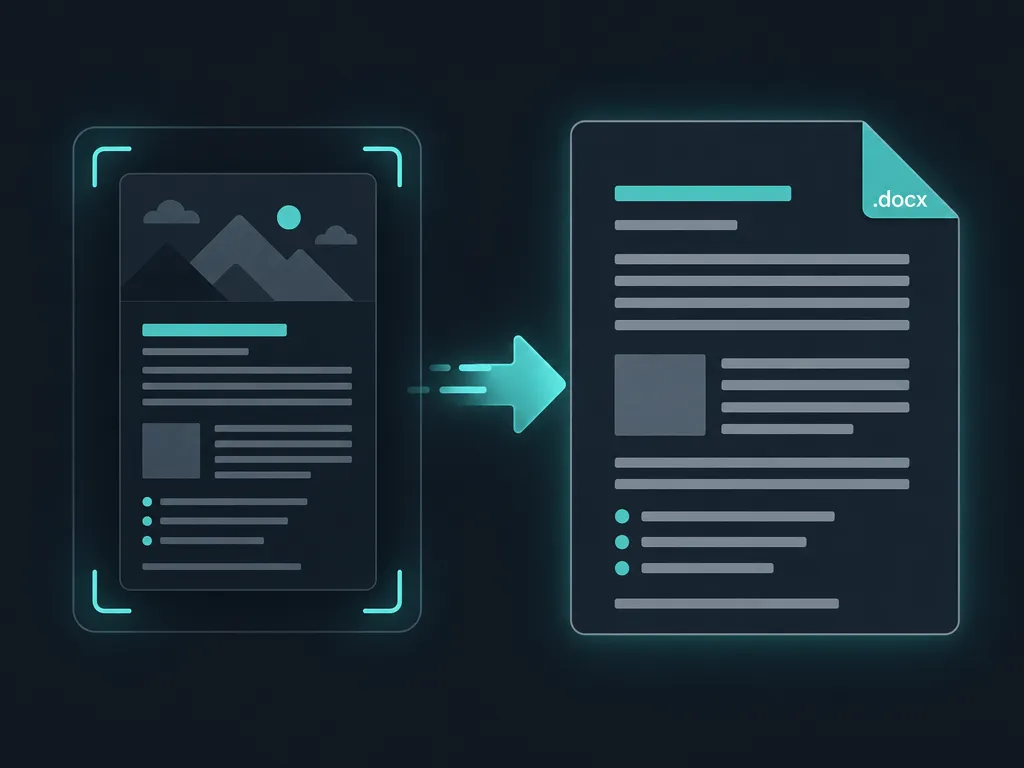
Turn a picture of text into an editable Microsoft Word document — the recognized words become a .docx you can rewrite, right in your browser.
Drop an image to scan
or choose an option below
JPG, PNG, WEBP, HEIC
Or press Ctrl/Cmd+V to paste
An image to word converter exists to solve one frustration: the words you need are locked inside a picture, and you want them back in a document you can actually type into. SafeOCR reads the image and hands you an editable Microsoft Word file. Point it at a screenshot of an email, a photographed page, a scanned handout, or a flyer, and it turns the readable characters into a .docx you can rewrite from scratch if you like.
Here is the honest expectation to set before you click, because it is what separates this from a “convert image to word” promise that overreaches: you get the text, not the design. The Word file is a stream of plain paragraphs in the order a person would read them. It does not attempt to rebuild the original page — no matching fonts, no two-column layout, no recreated tables, no logos or photos dropped back into place, no precise spacing. If your source is a richly formatted brochure, the .docx will hold every word from it but will look like a plain typed document, not a clone of the brochure. That is deliberate: clean, editable text you can restyle yourself is far more useful than a shaky, half-broken imitation of the layout.
Once the file is open in Word, Google Docs, or LibreOffice, it behaves like anything you authored. Fix a recognition slip, apply your own heading styles, merge it into a bigger report, or hand it to a collaborator with tracked changes. For a quick jpg to word job — grabbing the paragraphs off a single photo — that beats retyping the whole thing by hand.
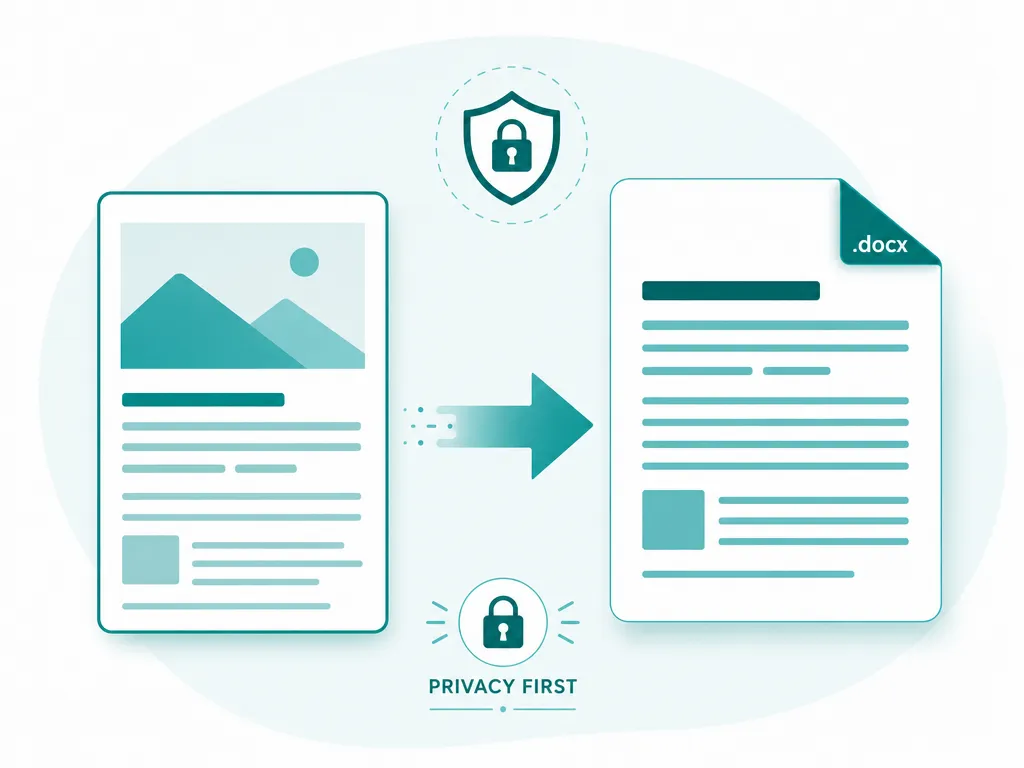
Privacy is built in rather than promised. The PP-OCRv6 recognition model and the Word-file generator both run inside this browser tab using WebAssembly and your GPU, so the picture you drop in and the document that comes out never leave your machine. After the one-time engine download the tool works offline, and there is no sign-up, no per-file limit, and no upload step where a contract, payslip, or private note could be copied to someone else’s server.
If your source is a full PDF rather than a single image, the PDF to Text tool streams results page by page; and if plain text suits you better than a Word file, Extract Text from Image skips the .docx step entirely.
How to convert an image to Word
Add your image
Drop in a JPG, PNG, WEBP, or HEIC file, browse for it, paste from the clipboard, or snap a photo. It stays on your device.Recognize the text
The on-device engine detects each line and reads it in natural top-to-bottom, left-to-right order so the words come out as coherent paragraphs.Download .docx
Click the Download .docx button in the result panel to save a Word file of the recognized text, ready to open and edit. A .txt download and copy-to-clipboard are there too.
Image to Word converter — FAQ
Will the Word file look exactly like my image?
No — and this is important to know up front. The .docx contains the recognized text as plain paragraphs in reading order. The original layout, fonts, colors, columns, tables, images, and positioning are not preserved or recreated. You get editable words, not a pixel-perfect copy of the page.
Which apps can open the downloaded .docx?
Any modern word processor. It opens in Microsoft Word (desktop, web, or mobile), and you can also upload it to Google Docs or open it in LibreOffice Writer, Apple Pages, or WPS Office without conversion.
Why choose .docx over the .txt download?
Both hold the same recognized text. Pick .docx when you want to keep working in Word — adding headings, styling, and comments. Pick .txt when you just need raw characters to paste into code, a database, or another tool. Copy-to-clipboard is available for quick grabs.
Is the recognized text actually editable?
Yes. The .docx is real, selectable Word text — not a scanned picture embedded in a document. Once it opens you can retype, reformat, spell-check, and rearrange every paragraph like anything else you typed yourself.
Can I convert JPG or PNG photos, not just clean scans?
Yes. JPG, PNG, WEBP, and HEIC all work, including photos taken with a phone. Sharper, well-lit, upright text reads more accurately, but the converter handles everyday snapshots too.
Are my images or the resulting Word file sent anywhere?
No. Recognition and .docx creation both happen in your browser. The image is never uploaded, the generated Word file is built locally and downloaded straight to your device, and nothing is stored or logged on a server.
Read: The tech behind on-device text recognition
Runs entirely in your browser — your files never leave your device.
How we built thisLast updated July 4, 2026