How to Extract Text from a Screenshot

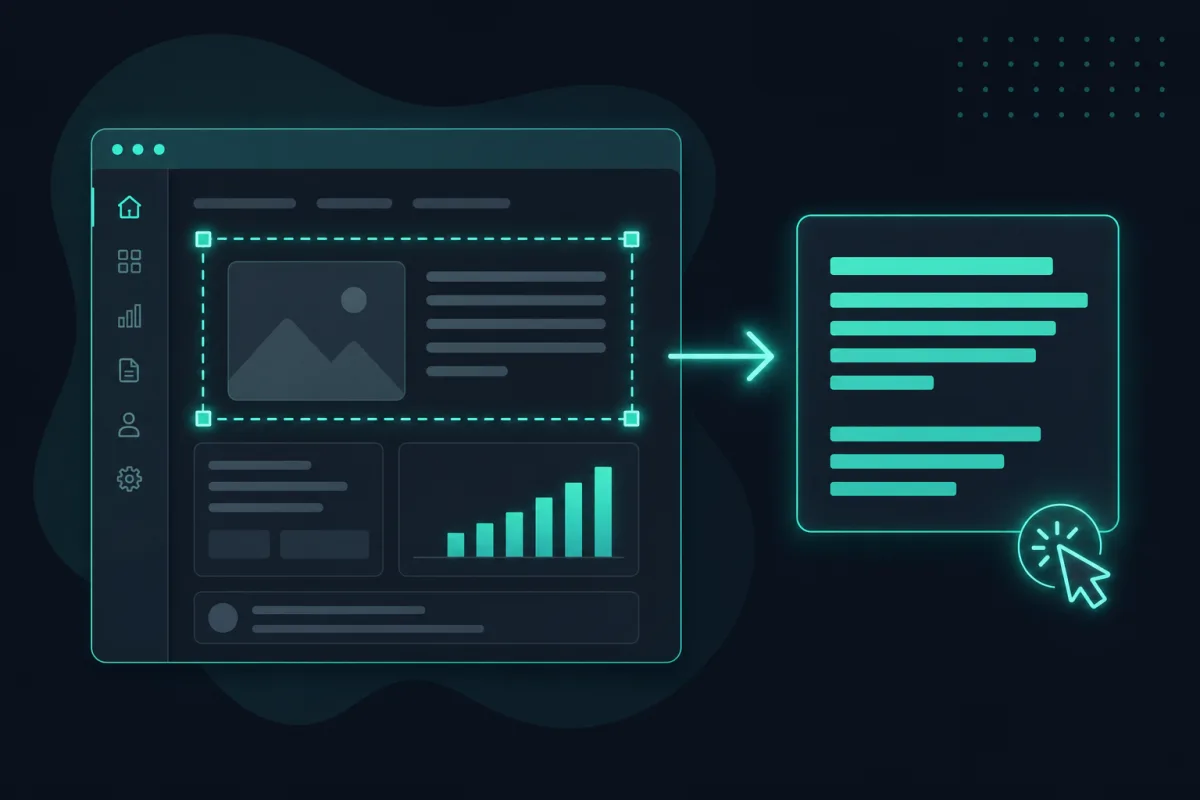
The fastest way: paste the screenshot directly into a screenshot-to-text tool and let on-device OCR turn the pixels into selectable text in seconds. No saving a file first, no uploading it anywhere — the recognition runs right in your browser tab. From there, copying the exact line you need is just a click.
A screenshot is the fastest way to capture what is on your screen — and, until you run OCR on it, one of the slowest things to reuse. The error message, the chat log, the code snippet from a video, the receipt total — it is all right there, but it is pixels, not text. Here is the quickest path from “screenshot” to “text I can paste somewhere.”
Step 1: Take the screenshot
On macOS, press Shift + Cmd + 4 and drag over the area you want (add Ctrl to the shortcut to copy it straight to the clipboard instead of saving a file). On Windows, press PrtScn to copy the whole screen, Alt + PrtScn for just the active window, or open the Snipping Tool (Win + Shift + S) to drag a custom region — all three copy the image straight to your clipboard. On a phone, the volume-down-plus-side-button (iPhone) or power-plus-volume-down (most Android phones) combo saves a screenshot straight to your photo library instead of the clipboard, which just means you will use the file picker in the next step rather than pasting.
Step 2: Paste it into a screenshot-to-text tool
This is the part people usually skip past: once the screenshot is on your clipboard, you do not need to save it as a file first. Open Screenshot to Text, click anywhere on the page, and press Ctrl/Cmd + V. The image pastes in directly and recognition starts immediately — no “save as PNG, then find it in Downloads, then upload it” detour.
If you already saved the screenshot as a file, that is fine too — drag it onto the page or use the file picker instead. Paste is just the fastest route when the capture is still fresh on your clipboard, and it works the same way whether the file behind it is a PNG (the usual format for OS-level screenshots) or a JPEG.
Step 3: Grab exactly the text you need
Once recognition finishes, every line the model detected becomes a clickable box drawn over your image. Want the whole thing? Hit Copy all. Want just the order number buried in a longer receipt, a single line out of a stack trace, or one phone number out of a screenshotted contact card? Click that single box and only it gets selected and copied — you are not stuck untangling one value from a wall of text. This is also the case where screenshot quality quietly matters more than people expect: a screenshot of a screenshot, or one re-compressed by a messaging app, can blur small text enough to cost you a character or two — see more on getting accurate results if a capture is not reading back cleanly.
A note on resolution and full-screen captures
One thing people worry about that usually is not an issue: on a modern high-DPI display, an OS-level screenshot is captured at the screen’s full native resolution, not a scaled-down preview, so text that is legible on your monitor is legible to the model too. Where resolution does start to matter is a full-screen capture of a busy desktop with many small windows — cropping down to just the region with the text you actually need, rather than feeding in the whole screen, both speeds up recognition and avoids the detector picking up stray text from an unrelated window in the background.
Why this works entirely in your browser
The recognition itself runs on-device using WebAssembly and, where available, WebGPU — there is no server involved and no upload of your screenshot to anywhere. That matters because screenshots are often things you would not want to hand to a random website: a two-factor code, an internal dashboard, a customer’s details in a support ticket. Since everything happens locally, the capture never leaves your machine — not even the clipboard paste triggers a network request — and the tool keeps working offline once the recognition engine has loaded once. For the fuller argument for why that matters, see is online OCR safe.
Related tool
Screenshot to Text →