How to Turn an iPhone Photo into Text
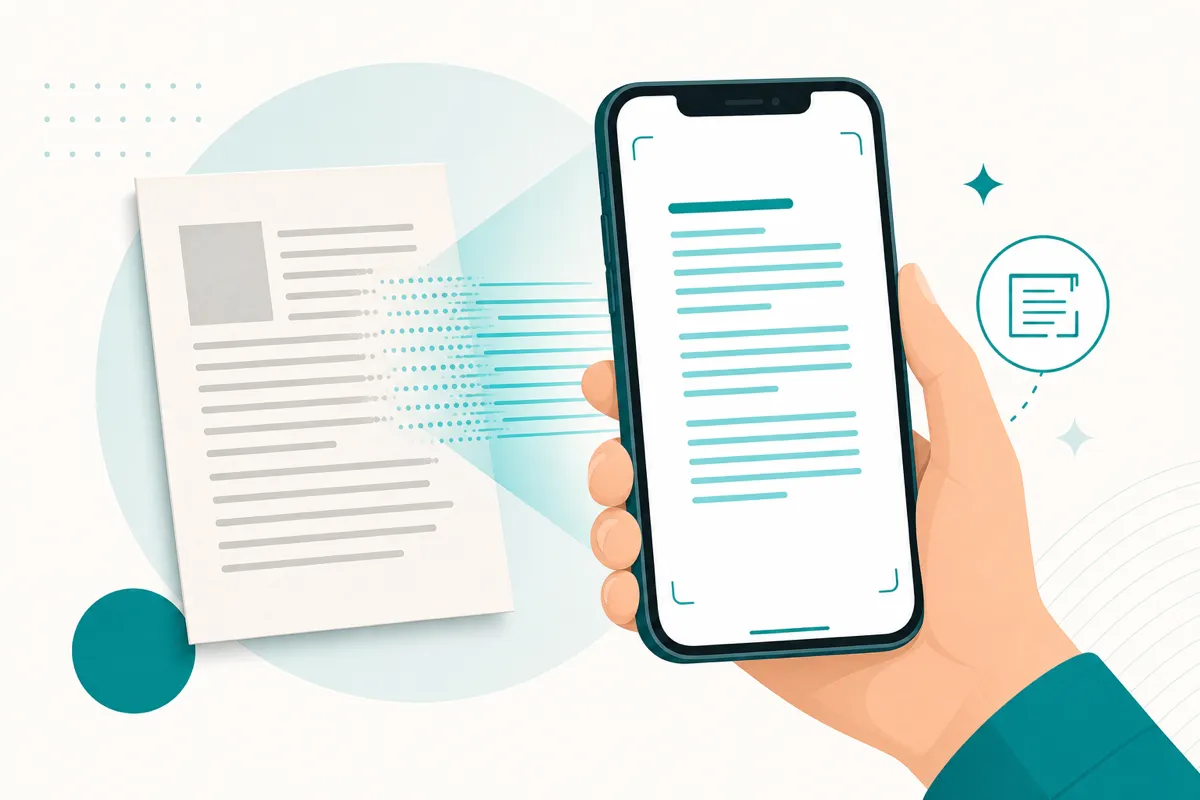
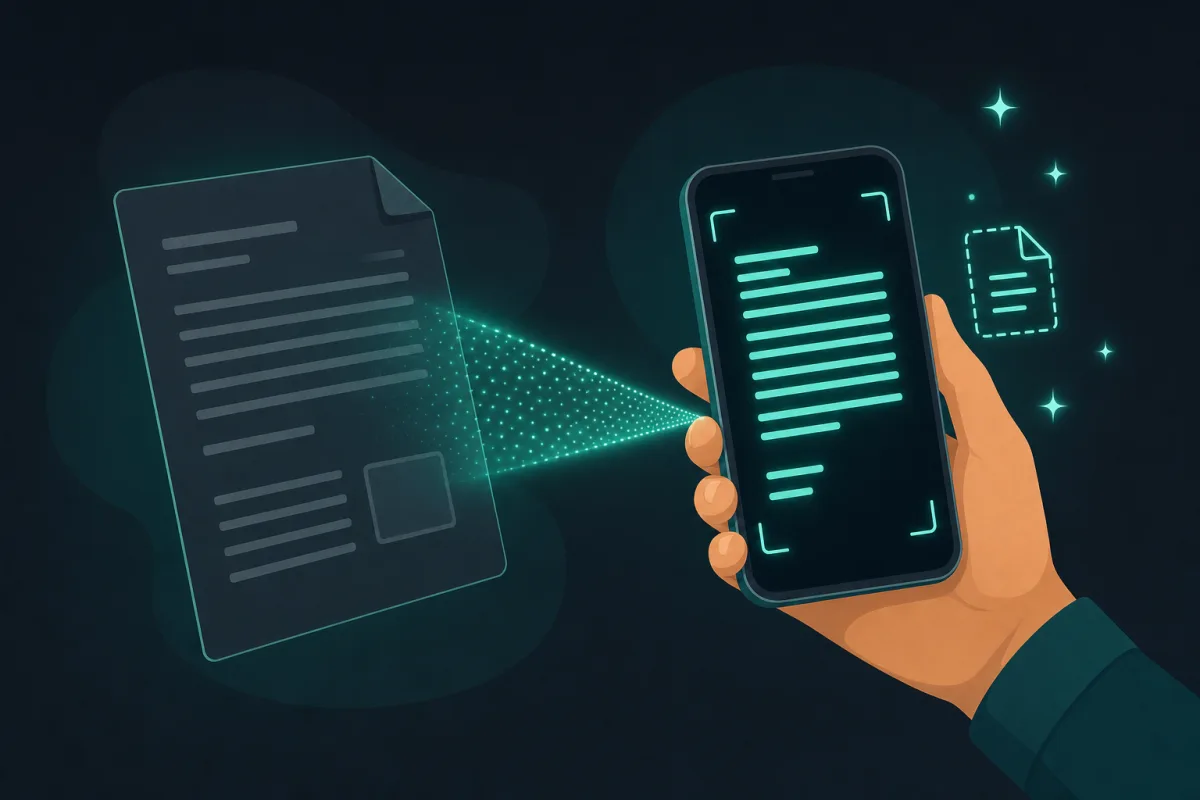
An iPhone photo’s .heic file doesn’t need converting to JPG first — a browser-based OCR tool can read the HEIC directly and recognize the text in the same step. The conversion happens quietly on-device, so there’s no export-then-upload detour before you get real, copyable text.
If you have ever tried to run OCR on a photo straight off your iPhone and hit “unsupported file type,” you have run into HEIC. Since iOS 11, iPhones and iPads save photos as .heicfiles by default — Apple’s take on the HEIF image format. It is a genuinely good format: photos look the same but take up roughly half the space of an equivalent JPEG. The catch is that a lot of tools, uploaders, and older OCR services still choke on it.
The usual workaround (and why it is annoying)
Most guides tell you to open the Photos app, duplicate the image, export the copy as a JPG, find it in Files, and only then feed it to whatever tool you actually wanted. That is three extra steps before you have even started, and it is easy to lose track of which copy is which — doubly so if you are doing it for a dozen photos after a trip rather than just one.
A shortcut: convert and read in one step
HEIC to Text skips the export entirely. Drop the raw .heic file in — no conversion beforehand — and it is converted to a readable image quietly, in your browser, using a lightweight converter that only loads when a HEIC file actually shows up. Recognition runs right after, on the same device, in the same tab.
What about the iPhone’s own text scanning?
Worth being upfront about this: modern iPhones already do something similar on their own. Live Text, built into iOS since iOS 15, can select and copy text directly out of a photo in the Photos app, on-device, without any separate tool. If you are on an iPhone and just need to grab one line out of a photo you already have open, Live Text is often faster than opening a browser at all. Where a dedicated tool still earns its place is everything Live Text does not cover: reading a HEIC photo that has already been AirDropped or emailed to a laptop, getting the recognized text out as a downloadable .txt file instead of a one-off copy, or processing a photo on a device that is not an iPhone at all.
What this is good for
Think about what people actually photograph on an iPhone: a receipt whose total you need in a spreadsheet, a whiteboard after a meeting, a page from a book, a business card, a serial number on the back of a device, a shipping label. All of those arrive as HEIC by default, and all of them work here without a conversion step. Multi-line content — notes, addresses, stacked totals — keeps its natural reading order, and you can click any single detected line to copy just that one. If what you actually photographed is several pages of the same document rather than one shot, a page-by-page workflow reads better than forcing every page through as a separate photo — see the guide to scanned PDFs for that case.
HEIC vs. HEIF, quickly
HEIF is the underlying image format; HEIC is the specific file type (the .heicextension) Apple uses to wrap a HEIF image. In everyday use, people say “HEIC” to mean “iPhone photo,” and that shorthand is fine — the tool handles both .heic and .heif the same way.
Getting a clean read on the first try
HEIC photos are still photos, so the same physical-world limits apply: a whiteboard shot from an angle across the room reads worse than one taken straight-on and close, and a receipt curling at the edges loses characters right where it curves. See seven tips for more accurate OCR results for the adjustments that make the biggest difference before you even open the tool.
Why it is safe to drop a personal photo in
iPhone photos are often personal by nature — a receipt with your card details, a document with a name on it, notes from a private meeting. Both the HEIC conversion and the OCR run entirely inside your browser with WebAssembly and WebGPU, so the photo is never uploaded and the text it contains is never logged anywhere. After the one-time engine download, it keeps working with no connection at all.
Related tool
HEIC to Text →