Extracting Text from Scanned PDFs
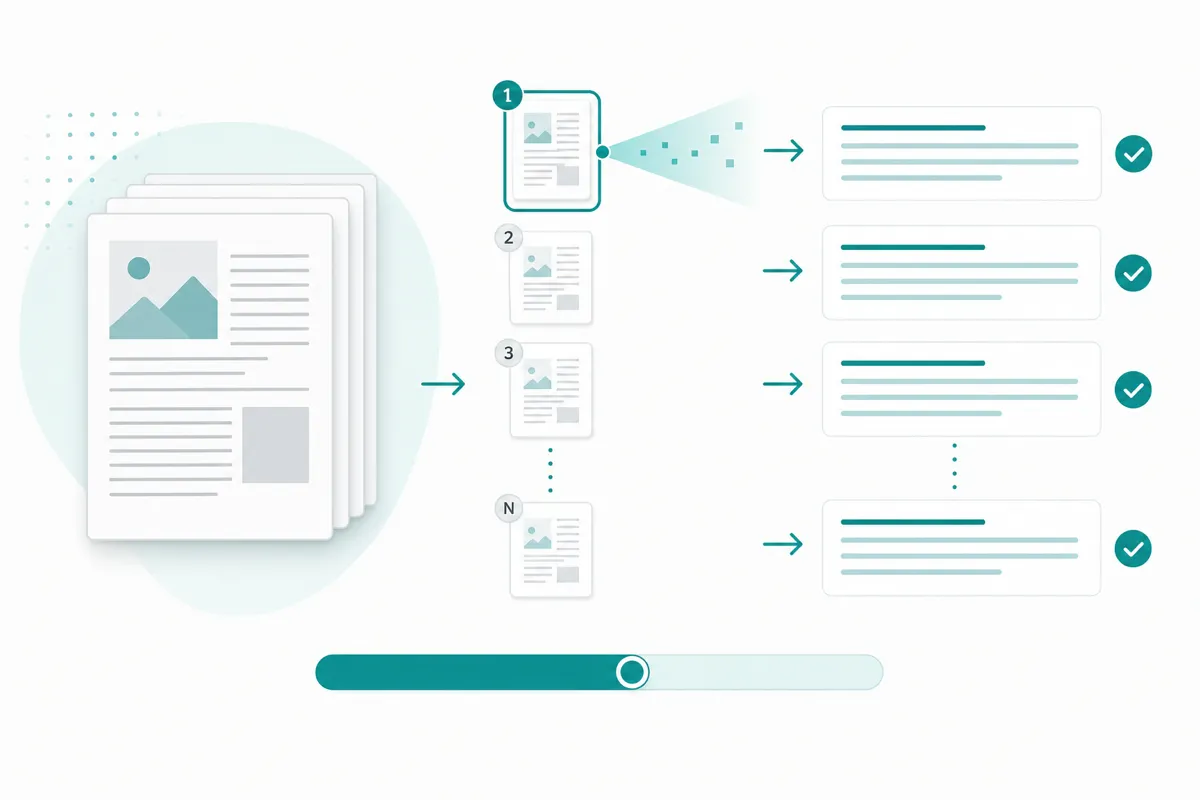
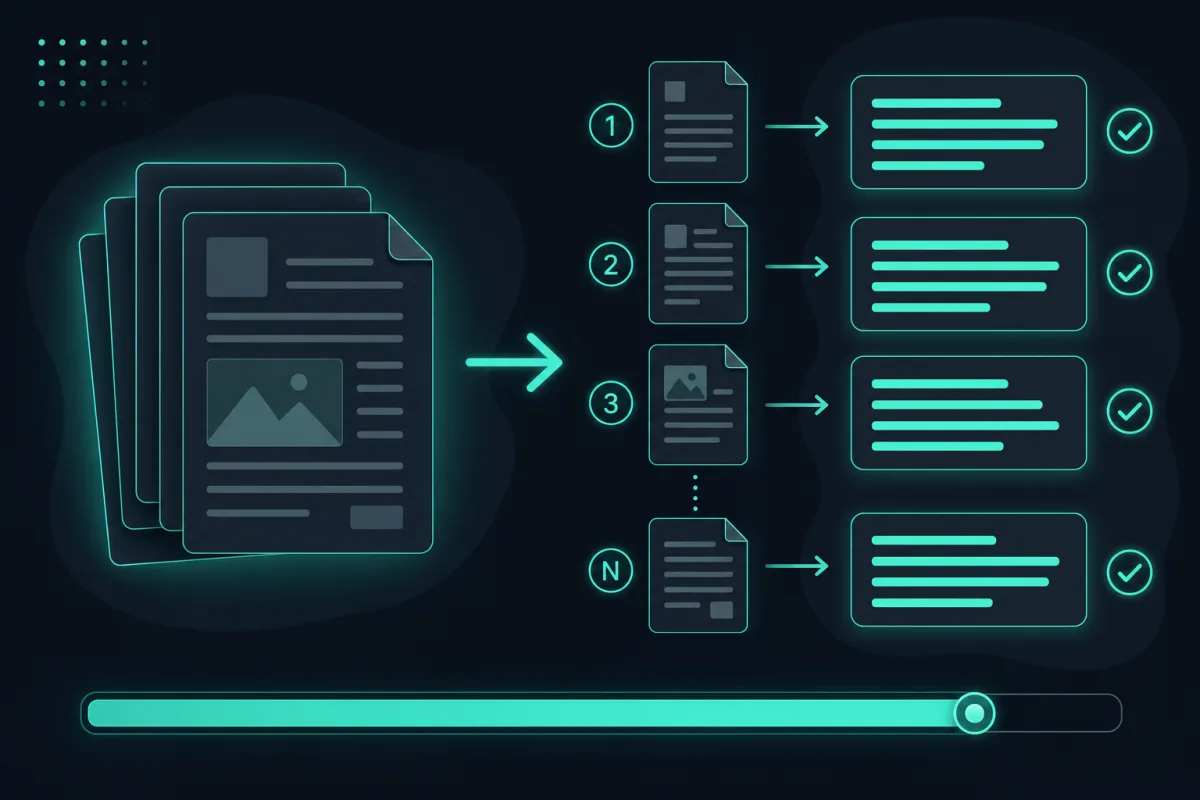
A scanned PDF is a stack of page images wearing a document’s file extension — there’s no text layer underneath, so nothing selects, searches, or copies until OCR runs on it. Extracting the text means recognizing each page as an image, one at a time, which turns that picture of words into real, searchable, copyable text without touching a server.
Not every PDF is created equal.Some are “digital native” — generated straight from a word processor or a website, with a real text layer you can select, search, and copy. Others are scanned: a photo or scanner image of a physical page, saved into a PDF container. They look the same at a glance, but only one of them lets you highlight a word.
How to tell which kind you have
Try selecting a word with your mouse. If a normal text cursor highlights individual letters, it is digital-native and you do not need OCR at all — copy and paste already works. If clicking and dragging selects nothing, or selects the entire page as one image, it is a scan. That is the case OCR exists for.
The mixed case: some pages are, some aren’t
A common wrinkle: a contract typed in a word processor, exported to PDF, printed, signed by hand, and scanned back in as a single file — or a multi-page report where somebody appended a scanned cover sheet to an otherwise digital-native document. Selectability can genuinely differ page by page in the same file. That is one reason running recognition page-by-page rather than treating the whole document as one unit matters: pages that already have real text still get read correctly, and the pages that are actually images are the only ones that need OCR to begin with.
Why scanned PDFs are so common
Anything that started life on paper and got digitized this way: signed contracts, faxed forms, older tax paperwork, a chapter scanned out of a physical book, a form filled out by hand and then run through a scanner or a phone camera. None of it has a text layer because none of it was ever typed into the file — it is a picture of the words, not the words themselves.
Turning a scan into real text
Extract Text from PDF handles this by rendering each page of the PDF to an image and running the same on-device recognition engine on it, one page at a time. Results stream in as each page finishes, so you see progress immediately on a long document instead of waiting for the whole file, and a Cancel button stops the run whenever you want — any pages that already finished keep their extracted text. A single badly scanned or skewed page in the middle of an otherwise clean document does not stop the rest of the file from processing either; each page succeeds or fails on its own.
What you get back
The output is the text content of each page, in reading order — not a pixel-perfect reproduction of the layout. Columns, tables, and exact positioning are not reconstructed; you get clean text you can reformat as needed, which is exactly what most people want out of a scanned contract or statement (searchable, copyable content), rather than a visual clone of the original page. If your document genuinely needs its table structure preserved rather than just its words, that is a layout-recovery problem, which is a different (and harder) task than straightforward text extraction — worth knowing before you expect a spreadsheet-shaped output from a page of plain text.
Why this matters for sensitive documents
Scanned PDFs are frequently the exact documents you would least want to hand to a random web service: signed agreements, bank and medical statements, tax records. Because rendering and recognition both run in your browser rather than on a server, the document itself is never uploaded — it stays on your device from start to finish, and nothing is stored after you close the tab. If a page in the file is really just an image with no text at all — like a photographed ID stapled into a PDF, or a screenshot pasted onto a page — the same recognition approach applies; see how to copy text that will not select for the broader set of cases that covers.
Related tool
Extract Text from PDF →